

It’s 2026, and IDEs remain the primary environment where developers do their most important work. While Visual Studio Code ships with a solid set of core editing features, its real strength lies in how easily it can be customized to fit different workflows, languages, and environments.
Developers customize VS Code to personalize and tailor their environments to better suit the stack they work with. This is made possible by adding better syntax highlighting for languages they use, tooling to debug programs, and linters to ensure consistency in larger code bases.
Instead of switching between terminals, dashboards, and external tools, extensions allow many of these workflows to run inline, in context, and on demand.
In this post, we highlight 15 VS Code extensions that meaningfully improve day-to-day development.
What is VS Code?
Visual Studio Code (often called VS Code) is a cross-platform code editor designed for a variety of languages. It provides core editing features out of the box while relying on an extensive extension ecosystem to support a wide range of languages, frameworks, and workflows.
Since its release in 2015, VS Code has evolved steadily, and thus far Microsoft’s involvement does not appear to have harmed its development, with the editor remaining fast, flexible, and broadly adopted across the industry.
What are VSCode Extensions?
Extensions, as the name implies, are a feature of VS Code that allows users to expand its feature set. This is done through a plugin system where developers can use the Visual Studio Code API to access a variety of features the editor exposes and extend them accordingly.
If you are familiar with Arduino, the Arduino extension is a good example of this in practice. Traditionally, writing and uploading sketches required the Arduino IDE. With the VS Code extension, those same workflows can be handled directly inside VS Code, extending its capabilities beyond just writing sketches to compiling, uploading, and interacting with code running on physical boards.
Key Features to Look For In a VSCode Extension
Extensions are event-driven. They typically activate when a specific condition is met, such as opening a certain file type, invoking a command, or entering a workspace. A well-designed extension typically defers work until activation.
This is because extensions rely heavily on TypeScript, their performance characteristics are closely tied to how efficiently they handle asynchronous operations, file system access, and background analysis tasks.
When evaluating an extension, here are some key things to consider:
- Activation behavior: Extensions that activate only when needed are generally safer than those that run on startup.
- Scope and focus: Extensions that do one thing well are usually more predictable and performant than all-in-one tools.
- Language server usage: Powerful, but potentially expensive especially on large codebases.
- Maintenance: Actively maintained extensions are more likely to keep up with VS Code API changes and performance improvements.
- Transparency: Good extensions document what they do, when they activate, and any known tradeoffs.
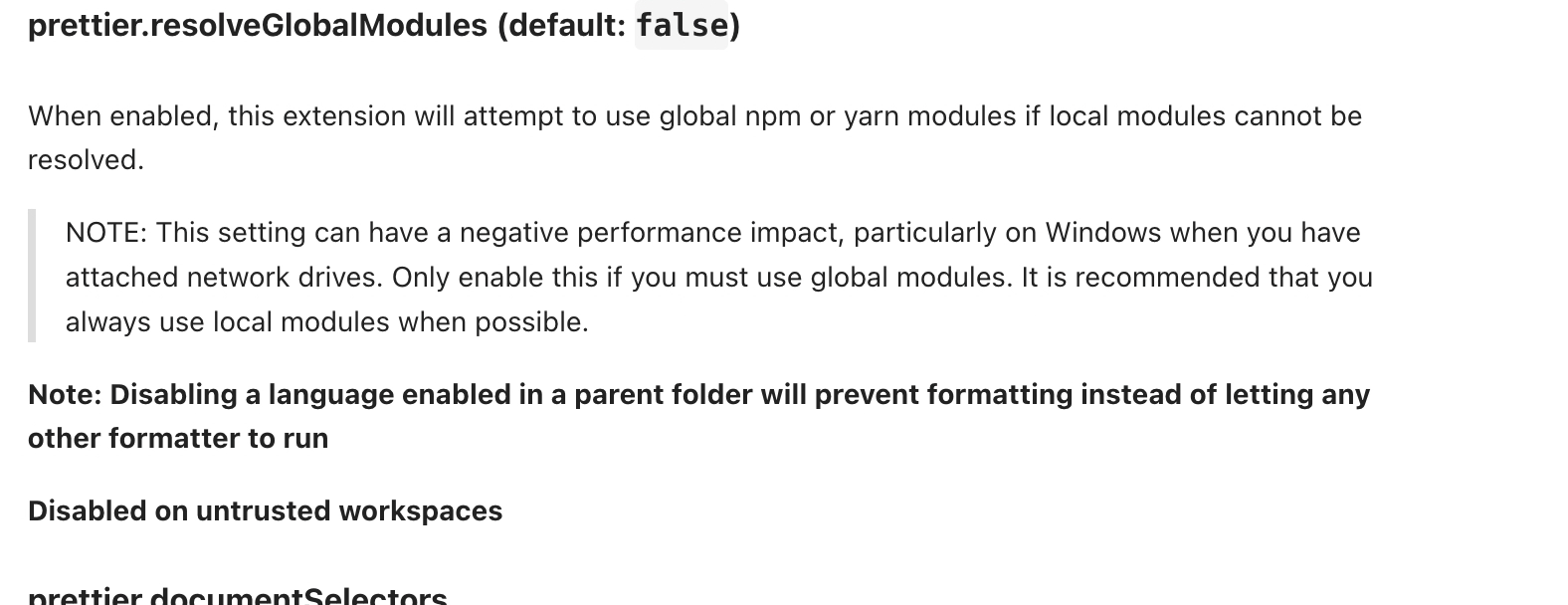
On performance, a good example of how good extensions would typically document known behaviours/tradeoffs can be seen in the extension called Prettier, where the documentation explicitly calls out how certain enabling options can impact performance.
Top 14 best VS Code extensions for 2026
To make this list easier to navigate, the extensions are grouped into four broad categories based on how they’re most commonly used:
- Collaboration
- Testing
- Productivity
- Security
While many extensions span multiple use cases, this grouping reflects their primary role in day-to-day development workflows.
{{cta}}
Collaboration
1. Remote – SSH
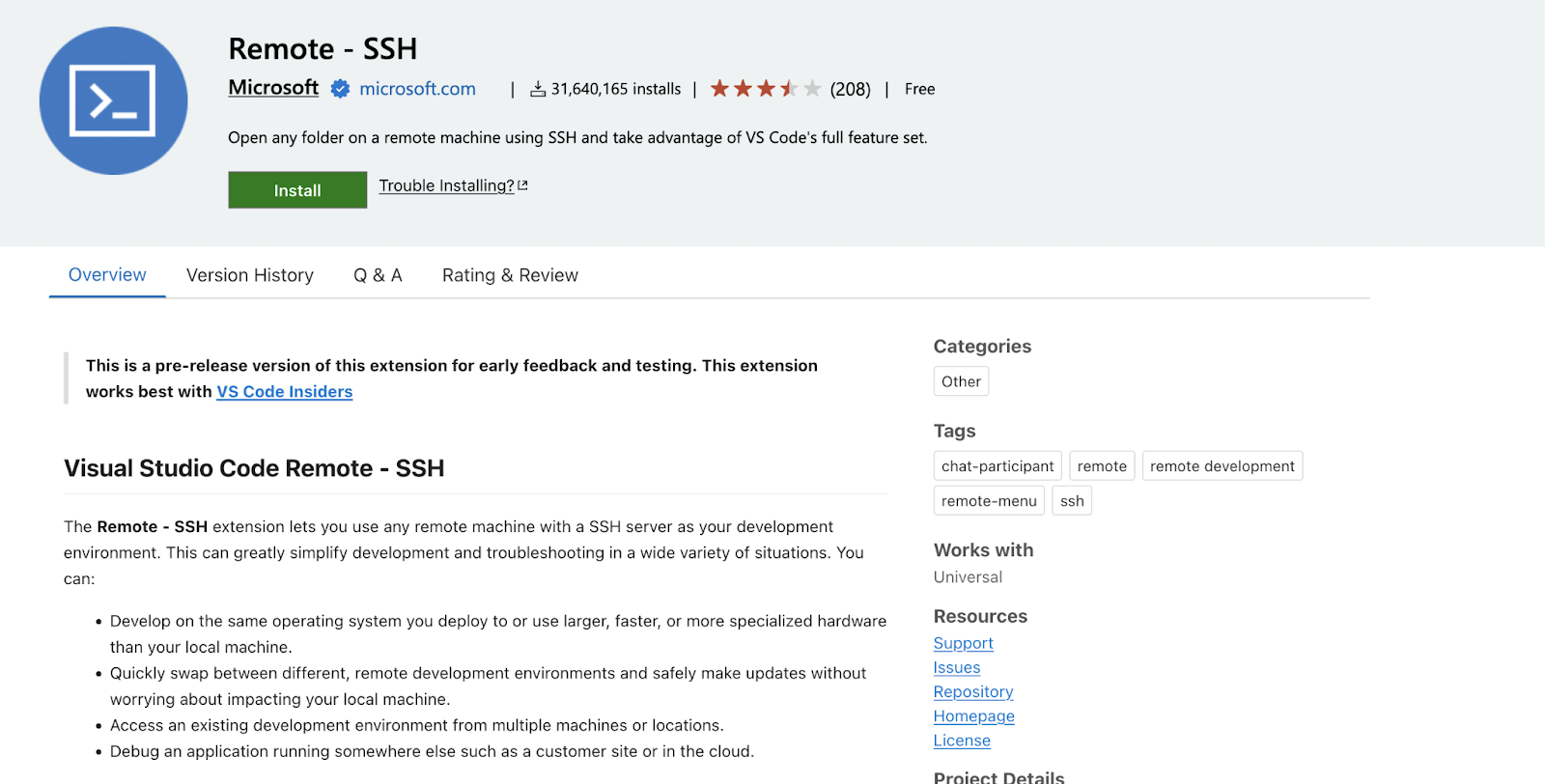
Developed by Microsoft, the Remote – SSH extension allows you to use a remote machine running an SSH server as your development environment. Instead of copying files back and forth or working around local hardware limits, VS Code connects directly to the remote system and runs extensions there.
This is particularly useful when working on codebases that require access to GPUs, custom kernels, or low-level system features. It is also commonly used for debugging eBPF programs from macOS or developing directly against Linux-based production-like environments.
Key Features
- Connects to remote hosts over SSH and work as if the code were local
- Run extensions, terminals, and debuggers on the remote machine
- Forward ports and access remote services securely
Best For: Developers working with remote servers, GPU-backed workloads, or Linux-specific tooling from non-Linux machines.
2. Mirrord
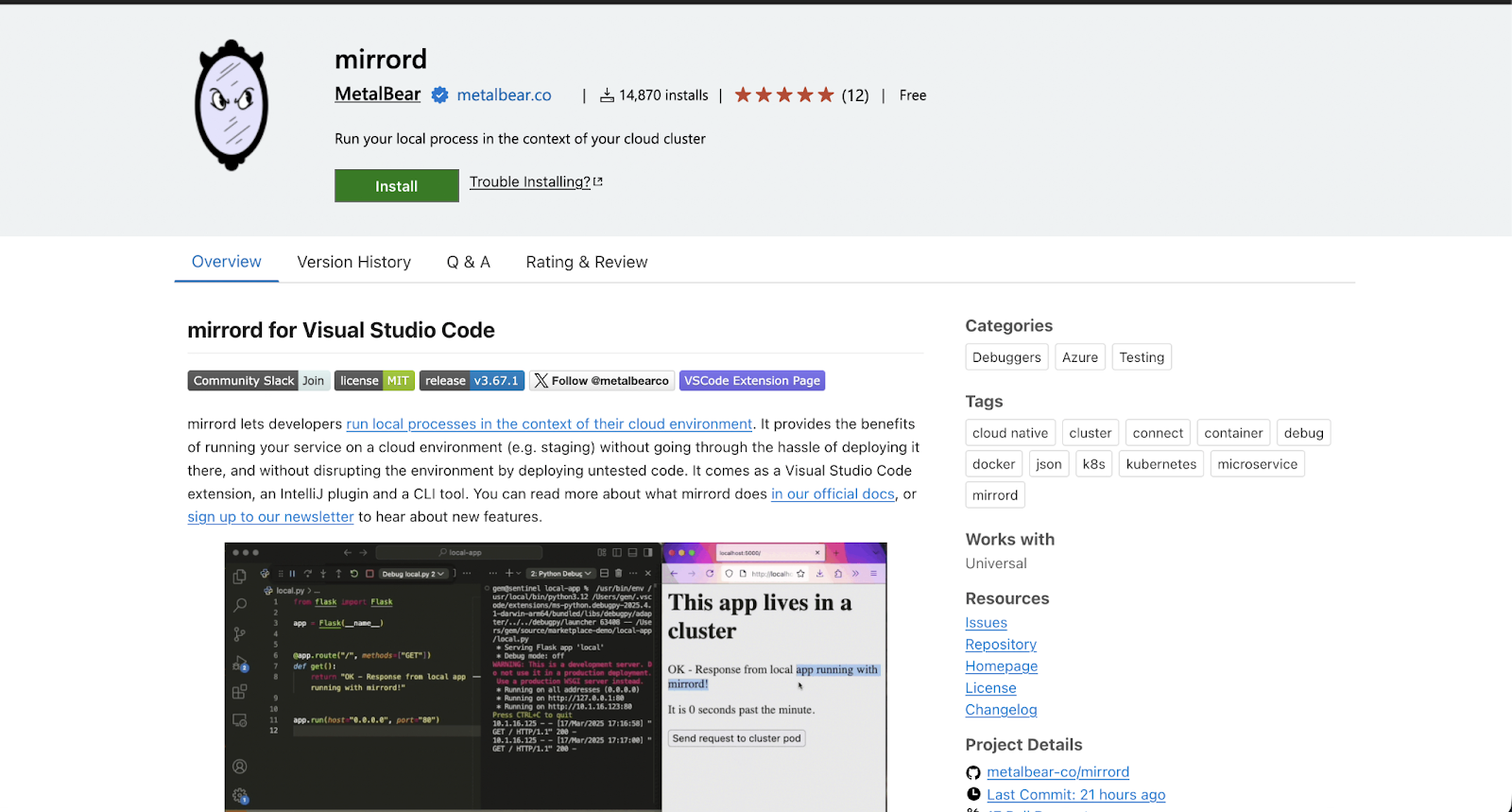
Developed by the folks at Metalbear, Mirrord is a tool that allows you to interact with applications running in remote environments (e.g a kubernetes cluster) as if they were local. This is primarily targeted towards teams using a microservice architecture and need traffic and deployment patterns that are as close to production as possible.
Key Features
- Runs a local process with the execution context of a remote Kubernetes pod, including environment variables, file access, and network behavior
- Mirrors incoming traffic from the remote pod to the local process while routing outgoing traffic through the cluster
- Integrates with existing Kubernetes access using the default kubeconfig, with support for explicit port mapping when needed
Best For: Teams working with Kubernetes-based microservice architectures who want to debug and test code locally.
3. Docker
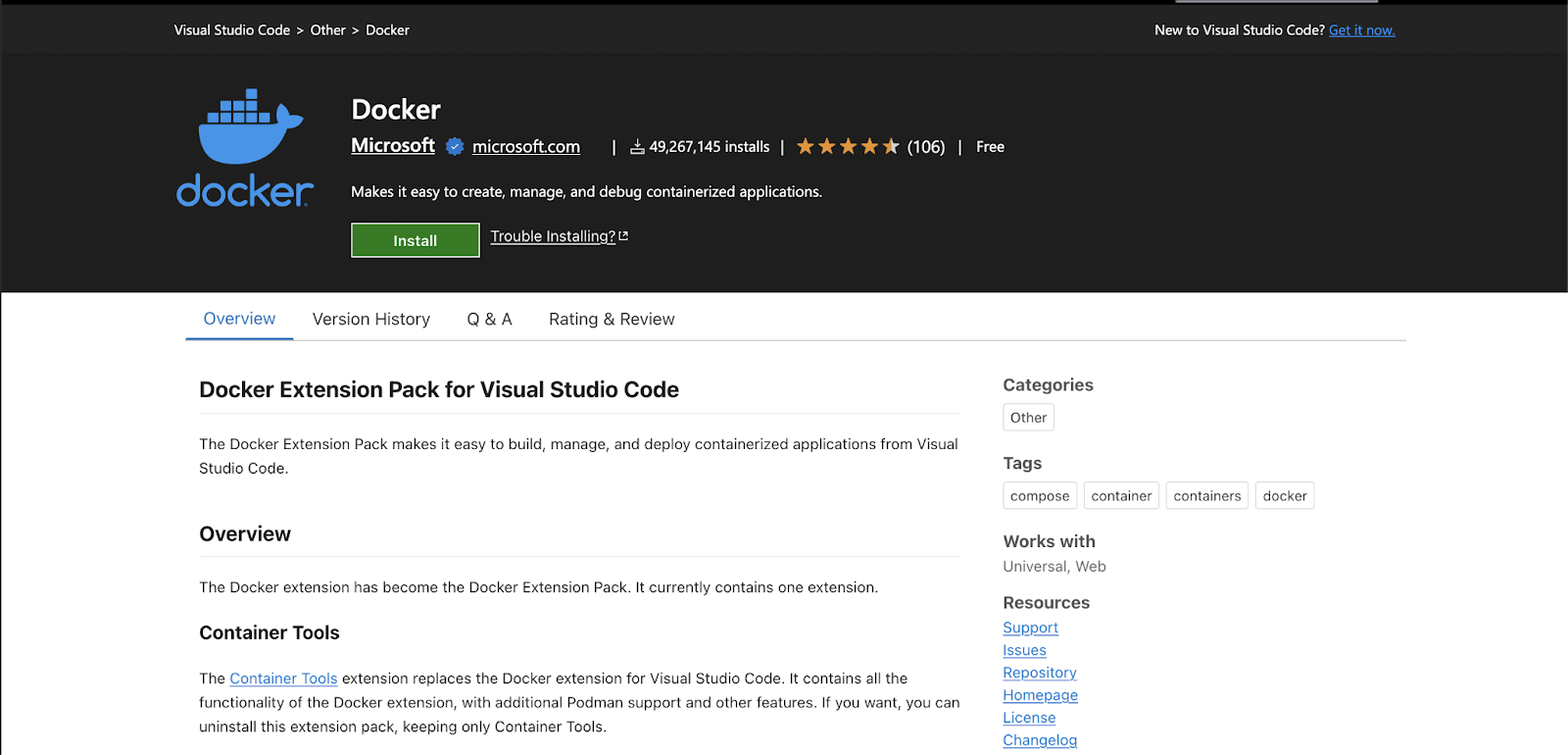
Docker is a tool that needs no introduction; the VS Code extension however, is often overlooked even to experienced users. By providing you tooling to explore build and obtain logs from containers, the docker extension helps to prevent context switching when developing microservices that primarily run in containers

Key Features
- Manage images, containers, and volumes from the editor
- Dockerfile and Compose file support
- Integrated container logs and inspection
Best For: Developers building, debugging, and maintaining containerized applications.
4. Dev Containers
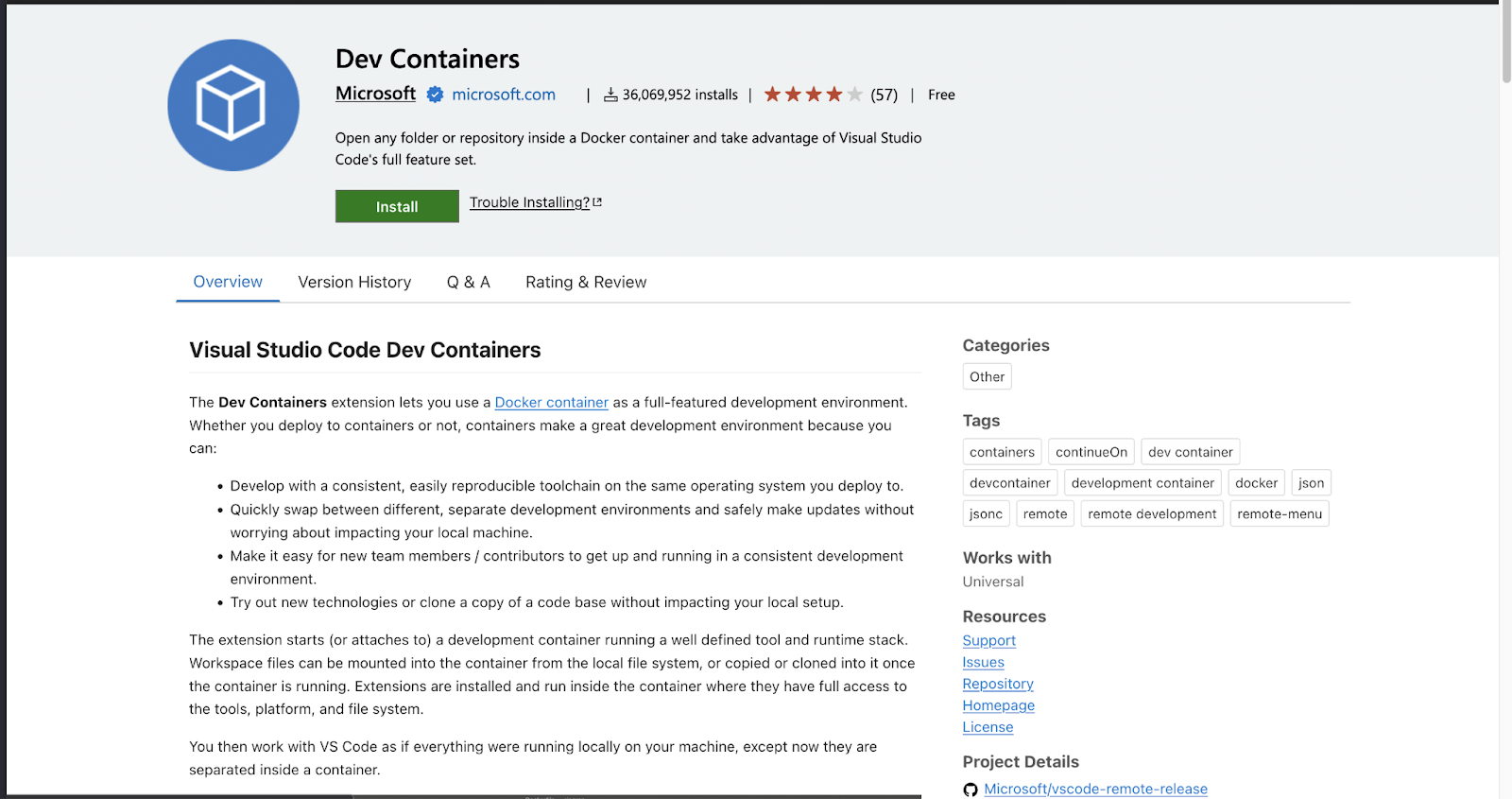
The Dev Containers extension allows you to define a development environment using a container configuration. Instead of relying on local tooling setup, VS Code opens your project inside a container with all dependencies preconfigured.
This helps reduce “works on my machine” issues and makes onboarding more predictable.
Key Features
- Reproducible development environments
- Support for team-wide configuration via version control
- Integration with Docker and Remote – SSH workflows
Best For: Teams that value consistent development environments across machines.
Testing
5. Ansible
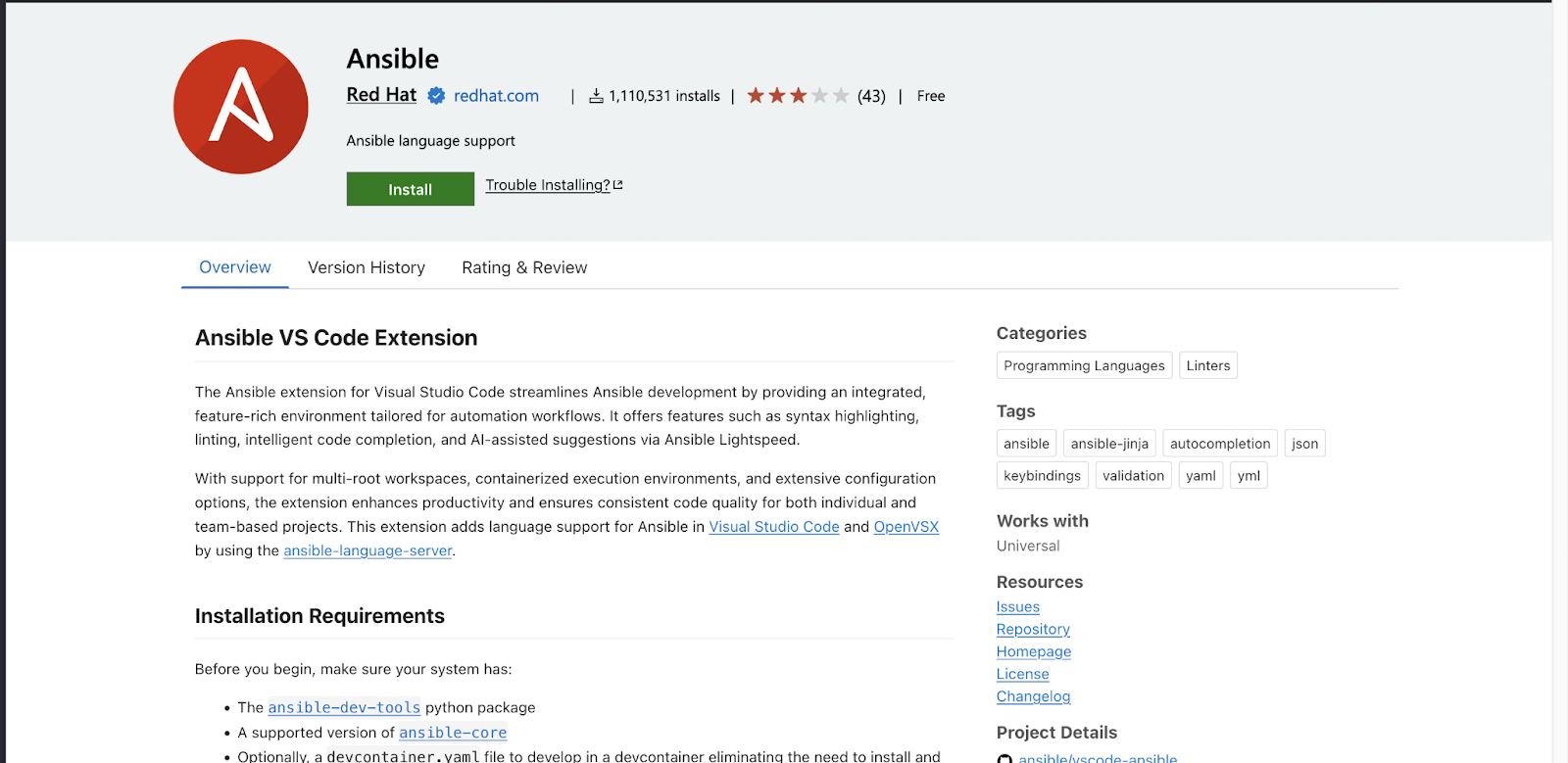
Ansible is an indispensable tool in many engineers’ toolboxes. It allows you to manage remote machines programmatically using declarative playbooks. If you have been writing Ansible for some time, you will likely agree that navigating documentation, variables, and YAML structure can become repetitive very quickly.
The Ansible VS Code extension aims to improve the development experience by providing inline documentation, validation, and tighter feedback while writing playbooks. It also supports development containers, which allow you to define a reproducible development environment with all required Ansible tooling baked in.
Key Features
- YAML validation and schema-aware linting
- Inline documentation and quick links to Ansible modules
- Support for development containers for consistent environments
Best For: Infrastructure and platform engineers writing and maintaining Ansible playbooks at scale.
6. Terraform
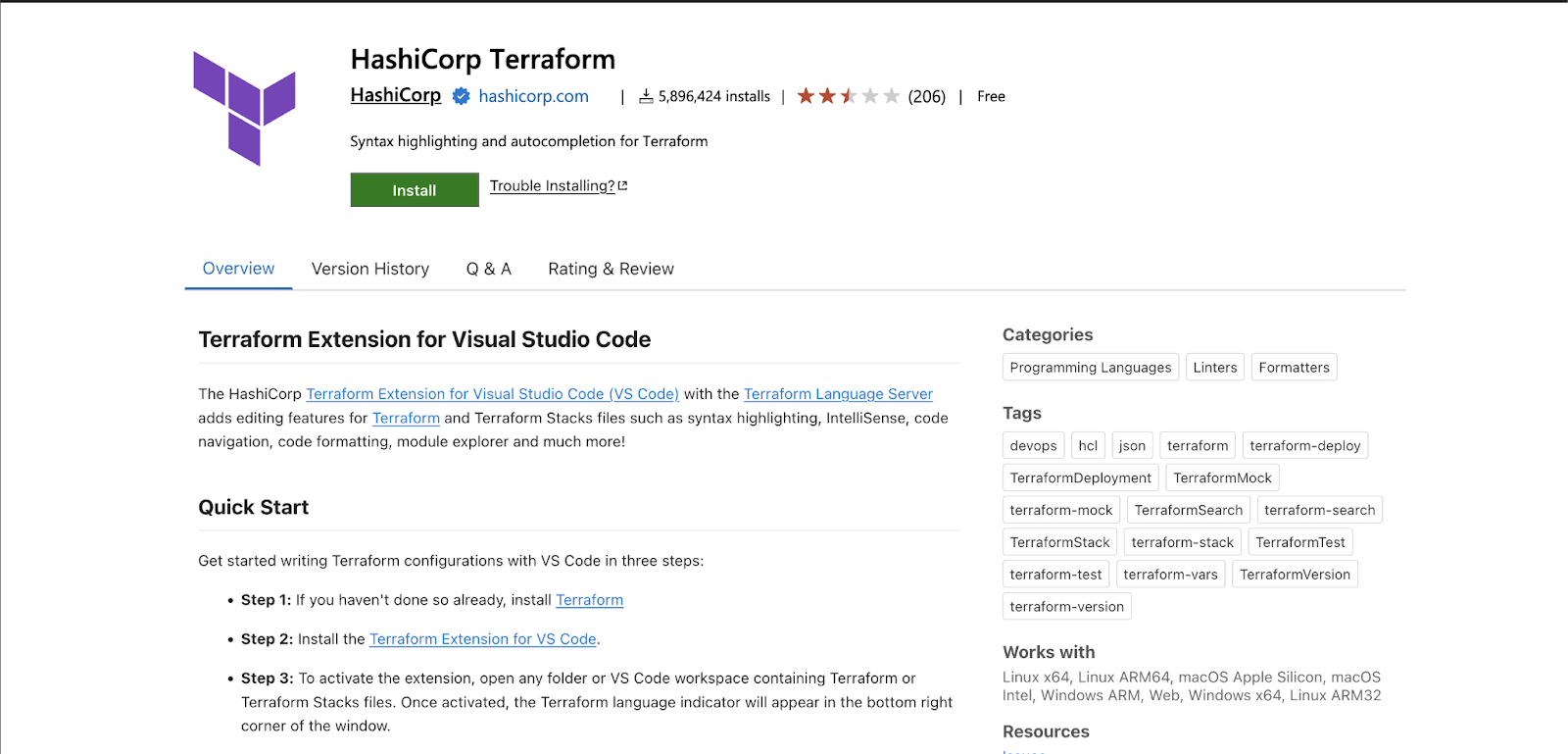
Building on the infrastructure-as-code extensions, HashiCorp maintains an official VS Code extension for Terraform. It is aimed at reducing the repetitive and error-prone parts of developing Terraform modules, particularly in larger configurations.
The extension integrates directly with Terraform’s language server, enabling better feedback during authoring rather than at plan or apply time.
Key Features
- Syntax highlighting and semantic validation
- Autocompletion for providers, resources, and variables
- Integrated formatting using terraform fmt
Best For: Engineers authoring and reviewing Terraform modules and documents with definitions.
7. Threat Composer
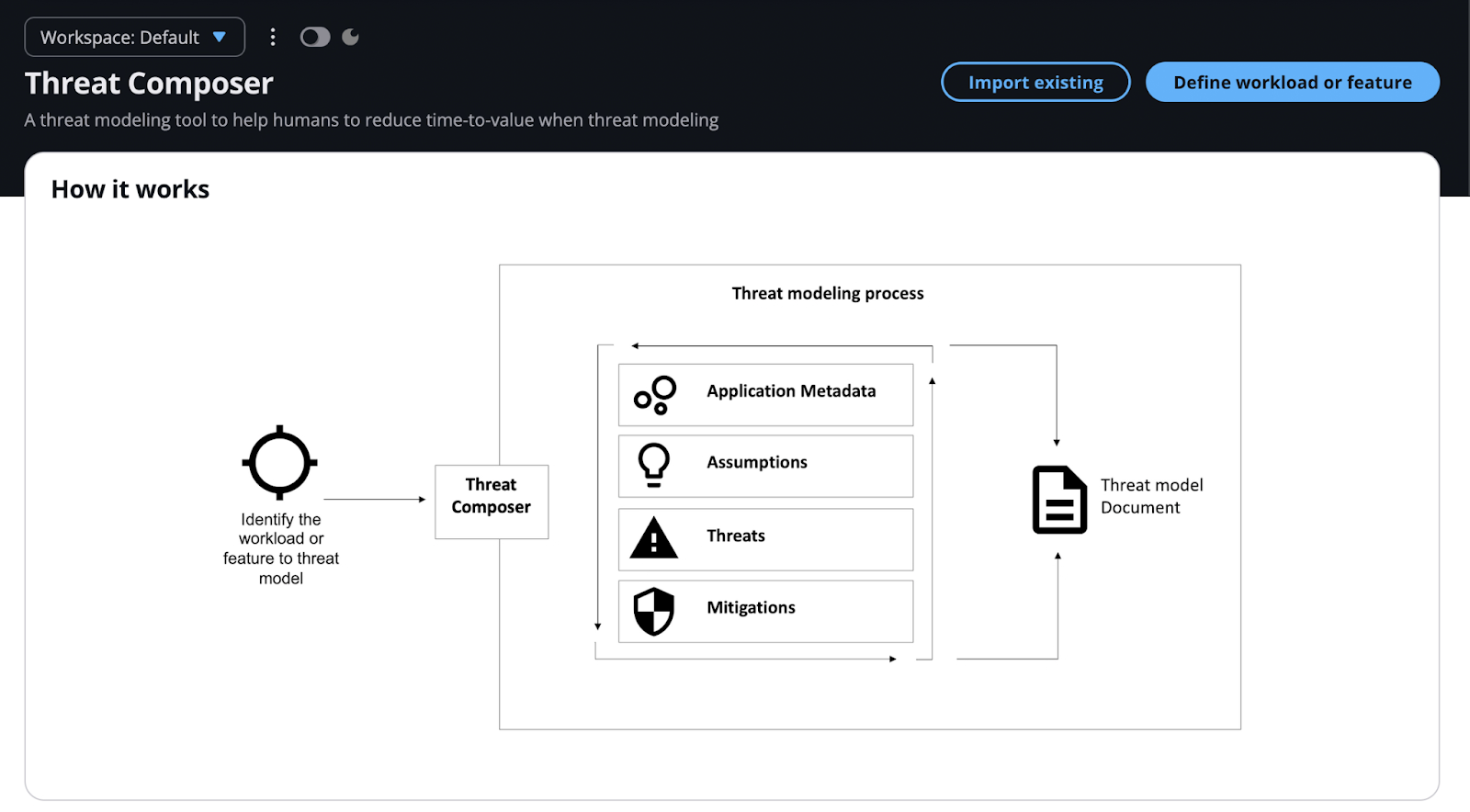
Threat Composer is an extension that supports structured threat modeling directly alongside your code. It is part of a broader threat modeling ecosystem designed to reflect the iterative and non-linear nature of real-world security design.
Rather than treating threat modeling as a one-off exercise, the extension allows teams to evolve models as systems change.
Key Features
- Visual threat modeling within VS Code
- Support for iterative updates as architectures evolve
- Integration with structured threat modeling workflows
Best For: Security teams and engineers building threat models for specific applications or services.
Productivity
8. GitLens
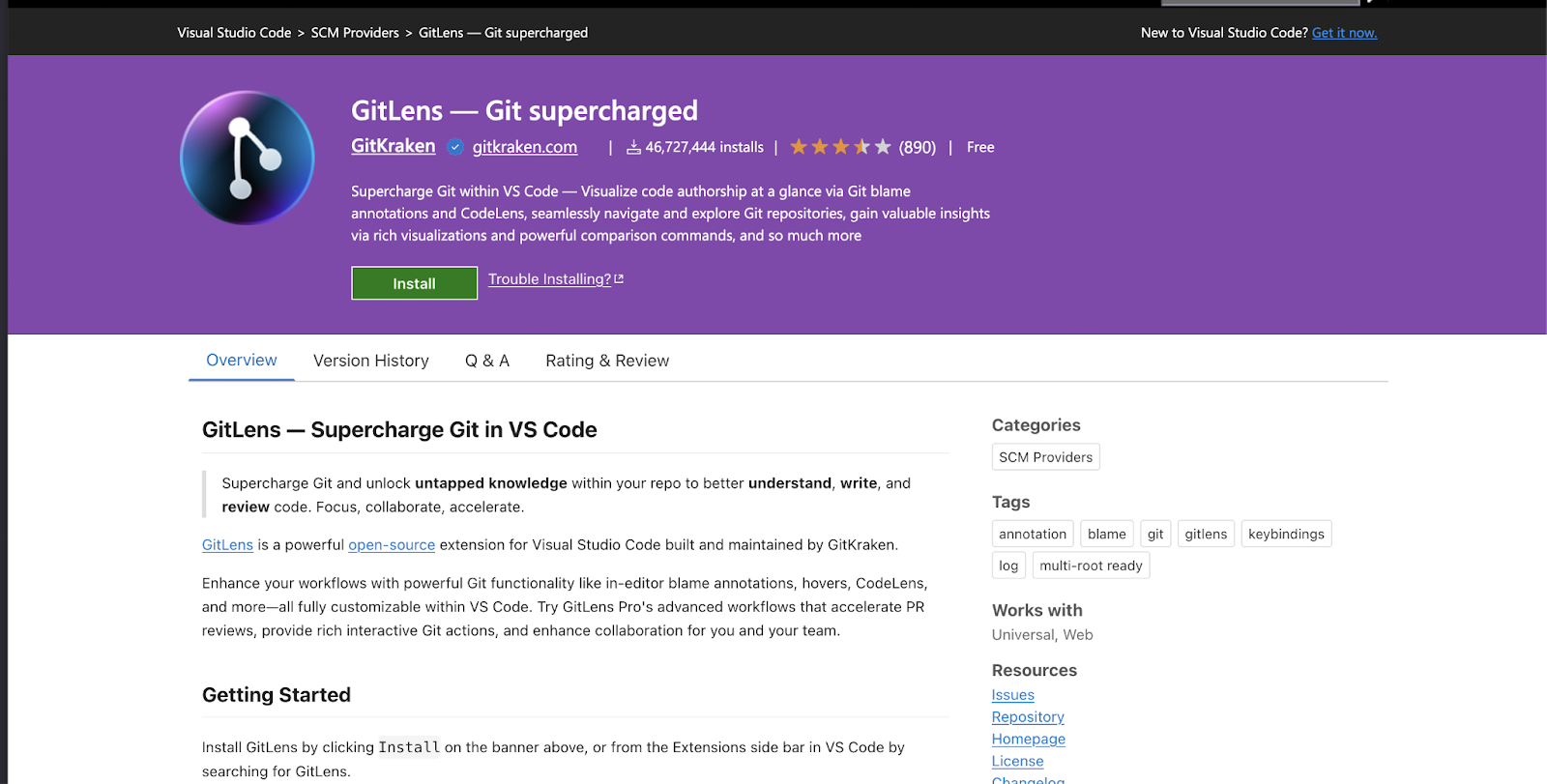
Anyone who has used Git will inevitably run into merge conflicts. While the Git CLI is powerful, it is not always the most discoverable, even for experienced developers.
GitLens enhances Git visibility directly in the editor, making it easier to understand why code exists and how it has changed over time. Additionally, it makes it much easier to work through interactive rebases.
Key Features
- Inline blame annotations and commit history
- Rich file and repository insights
- Side-by-side comparisons and code lens information
Best For: Developers working in shared codebases who frequently navigate history and reviews.
9. Prettier
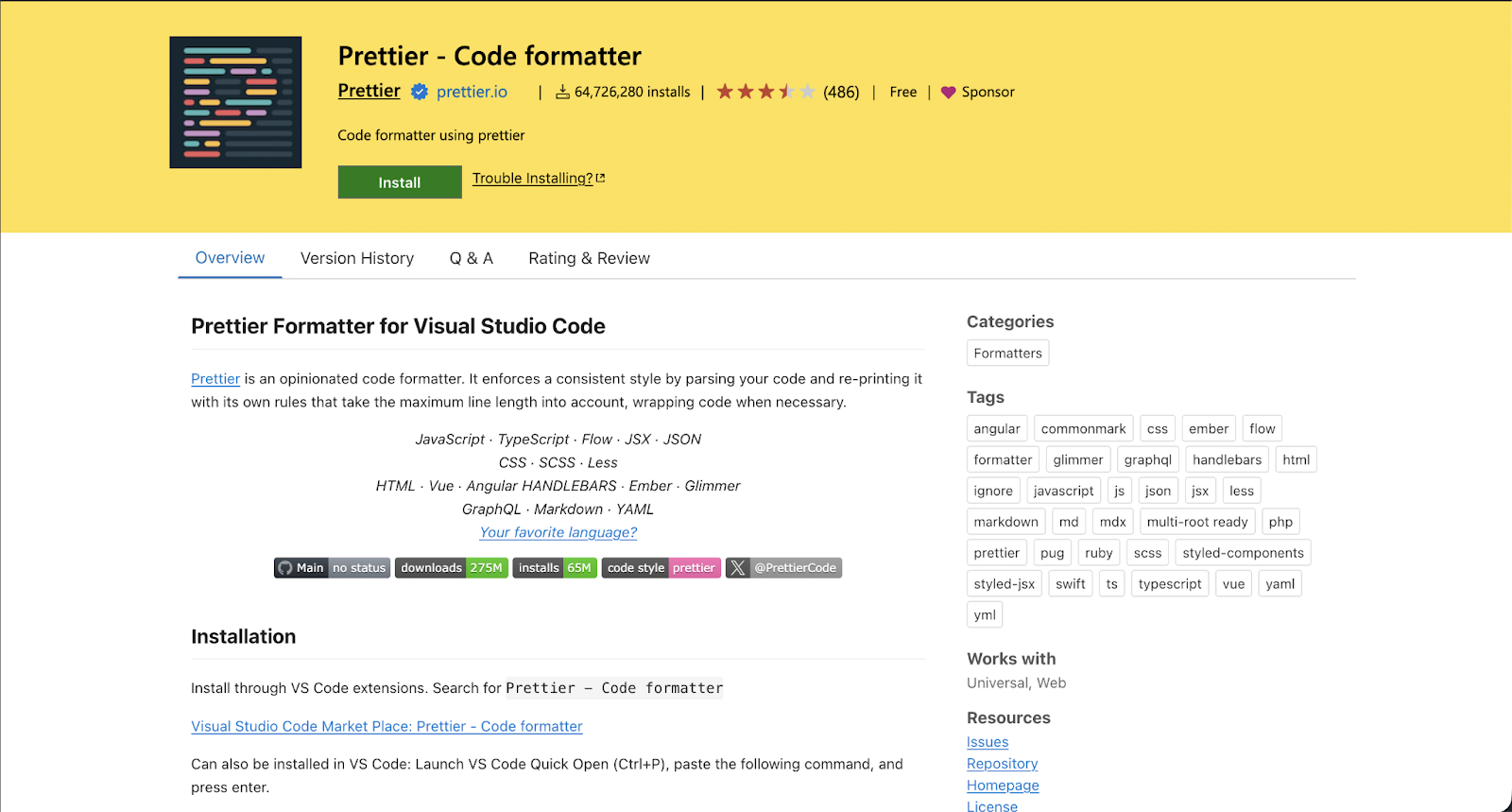
Prettier is widely adopted across web development stacks, and for good reason. It enforces a consistent code style automatically, Prettier integrates formatting directly into the editor, allowing rules to be enforced consistently across teams.
Key Features
- Opinionated, automatic code formatting
- Support for multiple languages and frameworks
- Integration with save actions and CI workflows
Best For: Teams that want consistent formatting with minimal configuration overhead.
10. Todo Tree
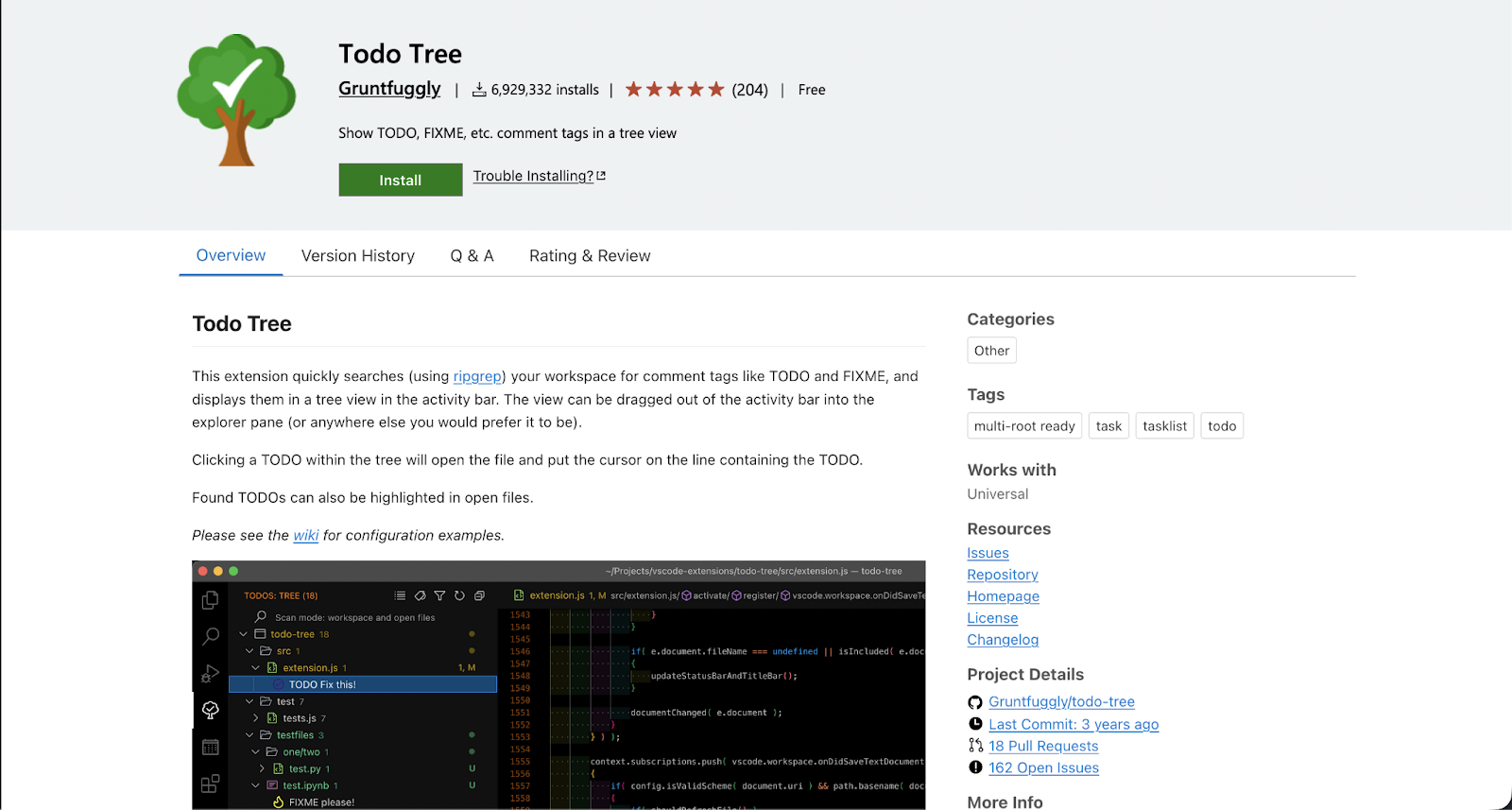
Todo Tree scans your workspace for comment tags such as TODO, FIXME, and NOTE, and surfaces them in a structured view. While simple in concept, it becomes useful in larger codebases where temporary markers can easily be forgotten.
Key Features
- Aggregated view of TODO-style comments
- Customizable tags and highlighting
- Quick navigation back to source locations
Best For: Developers managing large or fast-moving codebases with deferred work or light refactors.
11. Error Lens
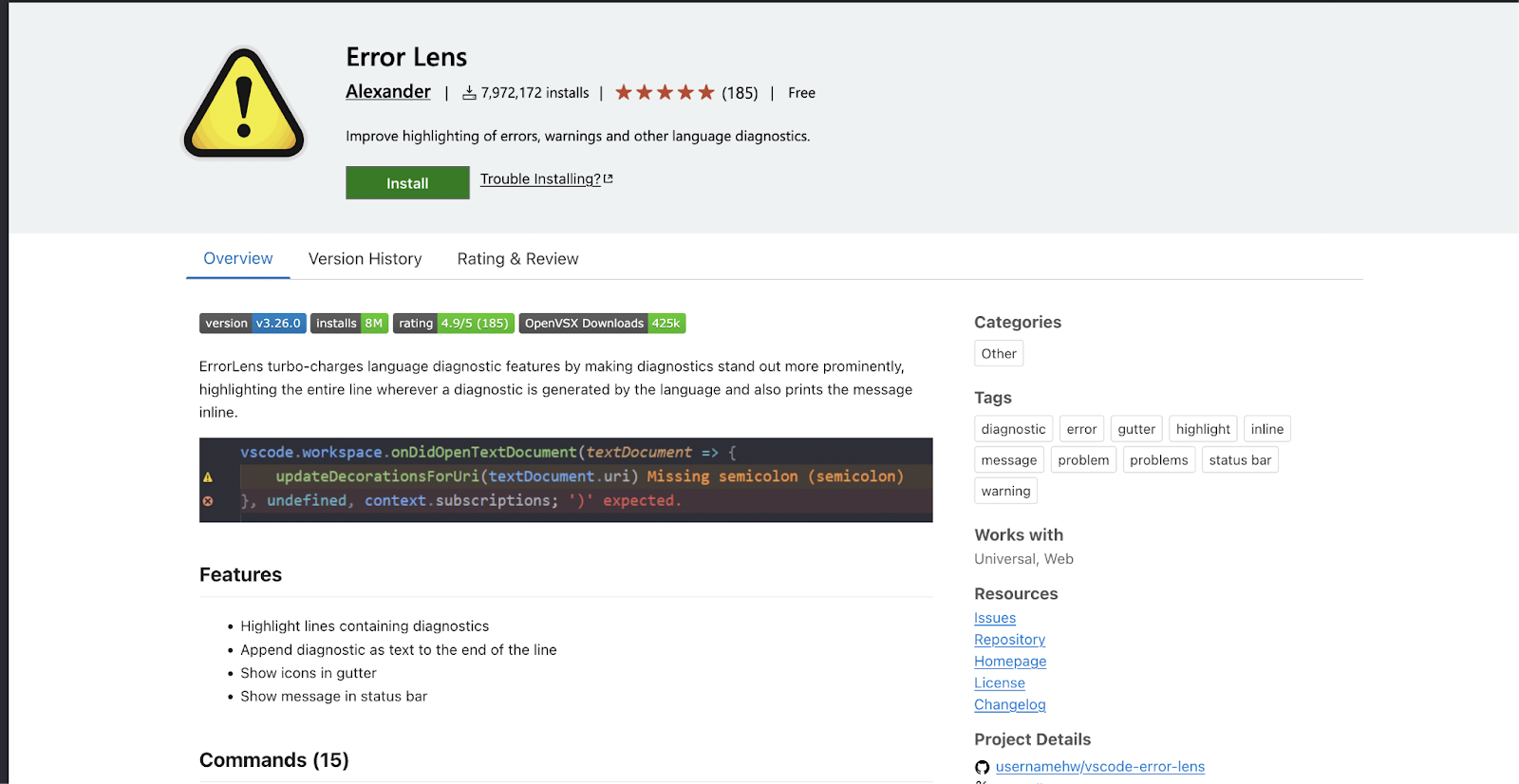
Error Lens improves the visibility of diagnostics by rendering errors and warnings inline, rather than relying solely on the Problems panel. This makes feedback harder to ignore and can shorten the edit–fix loop.
Key Features
- Inline error and warning messages
- Works with existing linters and language servers
- Customizable severity display
Best For: Developers who want immediate feedback while writing code.
12. Pomodoro Timer
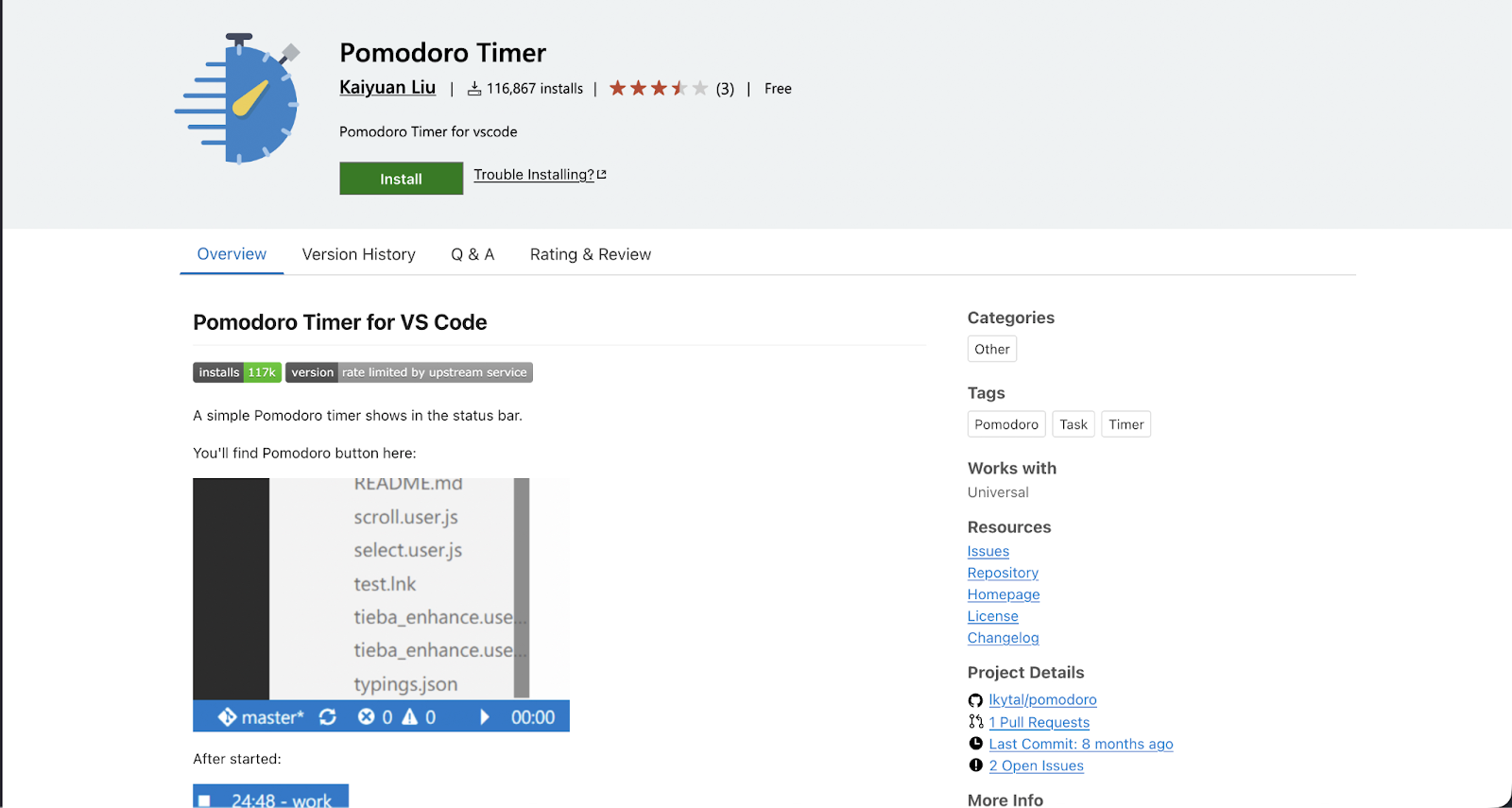
Whether you think it works or not, the pomodoro method is an easy way to help pace your code sessions. Typically you’d have to download a separate set of timers on your phone or maybe even buy a separate clock. Thankfully this is one extension which can help you set pomodoro timers right in your IDE.
Key Features
- Built-in Pomodoro timers directly inside VS Code
- Configurable work and break intervals
- Visual indicators for active and completed sessions
Best For: individuals who want a way to pace work sessions without relying on external apps.
Security
13. Aikido Security
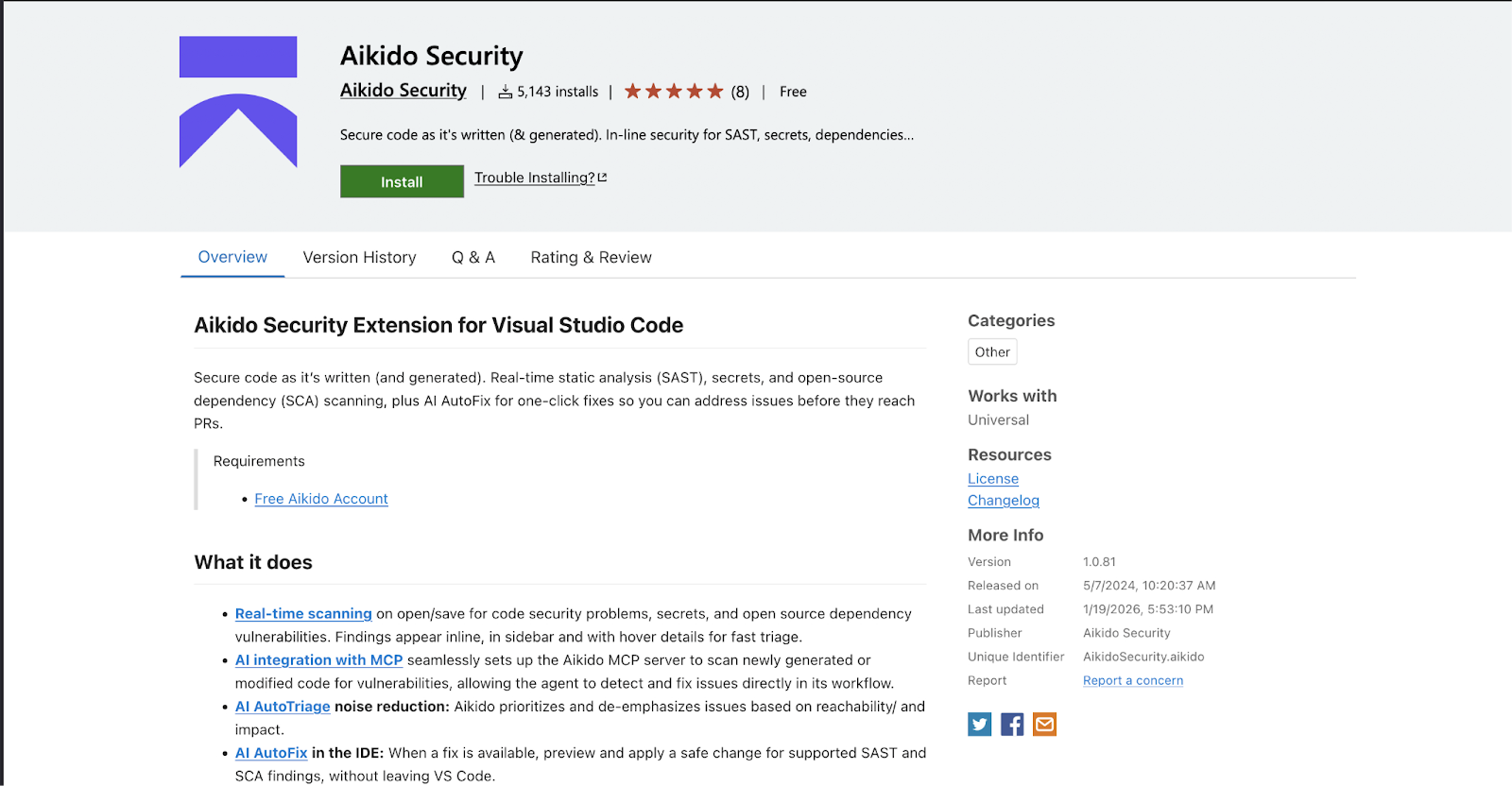
Aikido Security provides a developer-first application security platform that consolidates multiple security signals into a single, prioritized view. Its VS Code extension brings relevant, high-confidence findings directly into the developer workflow, allowing teams to address real risks early without overwhelming developers with low-value alerts.
Rather than acting as a standalone IDE scanner, the extension serves as an interface to Aikido’s broader platform, which focuses on correlating findings across code, dependencies, and configuration to reduce noise and improve decision-making. This approach helps teams shift security left while maintaining alignment with later-stage and production-aware controls.
Key Features
- VS Code integration backed by a unified application security platform
- Prioritized, developer-relevant findings surfaced directly in the editor
- Emphasis on signal quality and noise reduction over exhaustive alerting
- Designed to integrate with and complement runtime and production security layers
Best For: Teams that want actionable, low-noise security insights inside the developer workflow, without managing fragmented AppSec tools or burdening engineers with false positives.
14. OWASP Dependency-Check
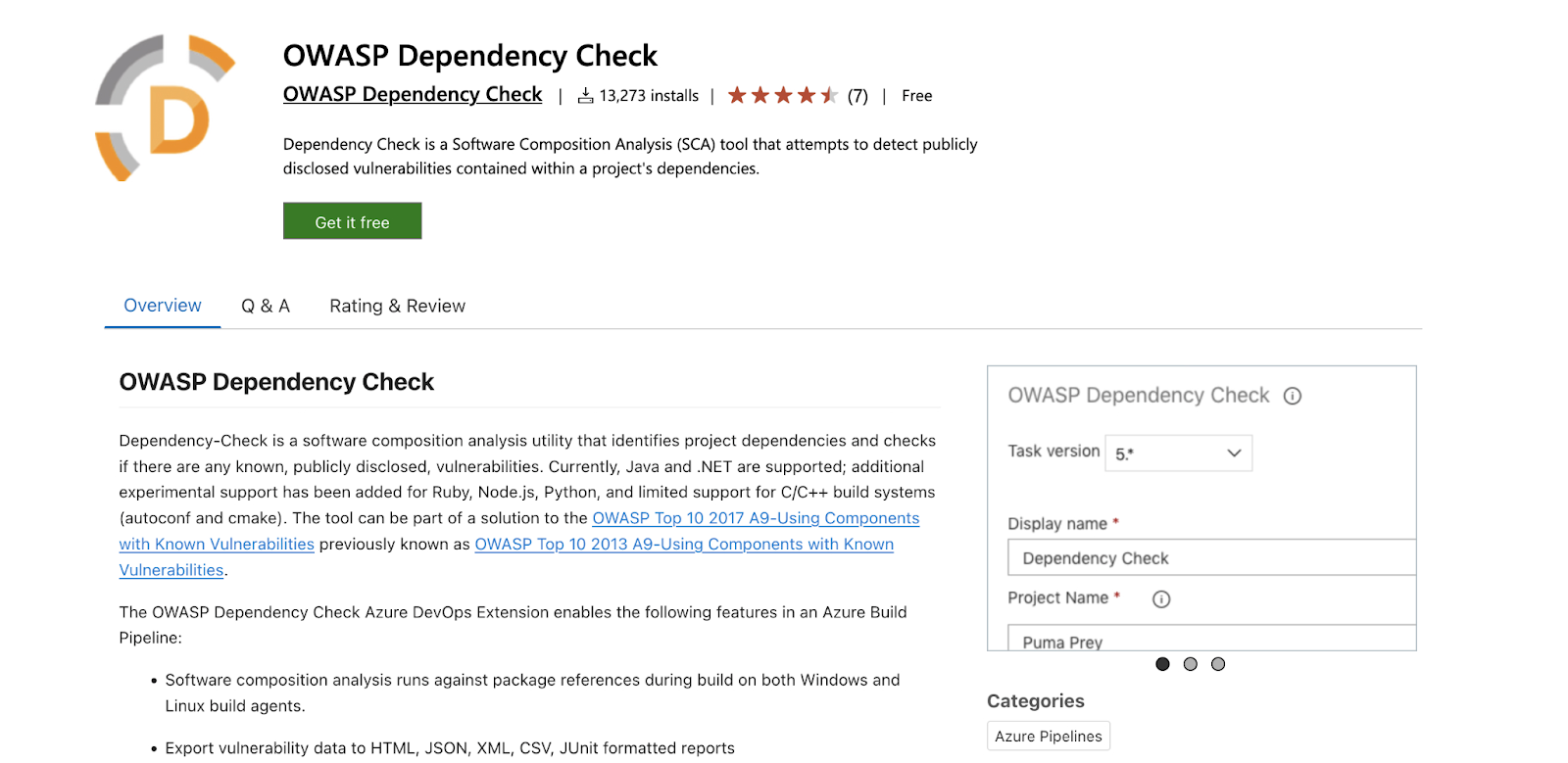
OWASP Dependency-Check focuses on identifying known vulnerabilities in third-party dependencies by matching them against public vulnerability databases. As with most dependency scanners, results are only as good as the underlying vulnerability data and do not account for whether a vulnerable path is actually reachable.
Key Features
- Scans project dependencies for known vulnerabilities
- Integrates with OWASP vulnerability databases
- Displays findings directly in the editor
Best For: Teams that want early visibility into vulnerable dependencies while developing.
Toward Safe Customization
Extensions are a great way to enhance the experience of your IDE, however, it should be approached with caution. In this article, we covered some of the top ones to use, pulling from our personal experiences as well as well known tools used by the community.
Use extensions only as needed, and audit them regularly for security concerns. Remove any you don't use anymore, and confirm that the extension still works as expected. There have been security issues with VS Code Extensions, and we discuss why in our coverage of the May 2026 GitHub breach.
When installing extensions it is important to keep in mind that having too many at any given time might lead to slower startup times and degraded performance especially if you have two extensions that do the same thing. While there is no "recommend" number of extensions you can have, aim to keep it sane, as some features you are looking for might already exist without the need for a plugin.
If you enjoyed this post, here are some ideas for your next read:
- The Top 18 Best Code Review Tools of 2026
- The Best 6 Code Analysis Tools of 2026
- Top 9 Best AI Code Review Tools in 2026
- Top 12 ASPM Tools in 2026
- Top Cloud Security Tools for Modern Teams
FAQ
Do I need extensions to use VS Code effectively?
No. VS Code works well out of the box for basic editing and navigation. Extensions become valuable as your workflows grow more complex, especially when working with infrastructure, containers, security tooling, or large codebases.
Can installing too many extensions slow VS Code down?
Yes. Extensions run in the background and can affect startup time and editor responsiveness, particularly if multiple extensions activate on startup or overlap in functionality. It’s best to install only what you actively use and periodically review your extension list.
How do extensions impact performance?
Most extensions are event-driven and activate only when needed, such as when opening a specific file type. Poorly designed or outdated extensions may run unnecessary background tasks, perform expensive file scans, or block the extension host, leading to slowdowns.
How can I tell if an extension is causing performance issues?
VS Code provides built-in tooling to inspect extension performance, including startup profiling and extension host logs. Disabling extensions one by one or using the “Start Extension Bisect” feature can help identify the culprit.
Are VS Code extensions safe to use?
Extensions run with access to your workspace and editor APIs, so trust matters. Stick to well-maintained extensions from reputable publishers, review permissions and documentation, and avoid installing tools that duplicate functionality you already have.
Should security checks live in the editor or CI?
Both. IDE-based extensions provide early feedback while writing code, which helps catch obvious issues sooner. They complement, rather than replace, deeper CI and production-level security controls.
How often should I update or remove extensions?
Regularly. Actively maintained extensions tend to keep up with VS Code API changes and performance improvements. Removing unused extensions helps keep the editor fast and predictable.


